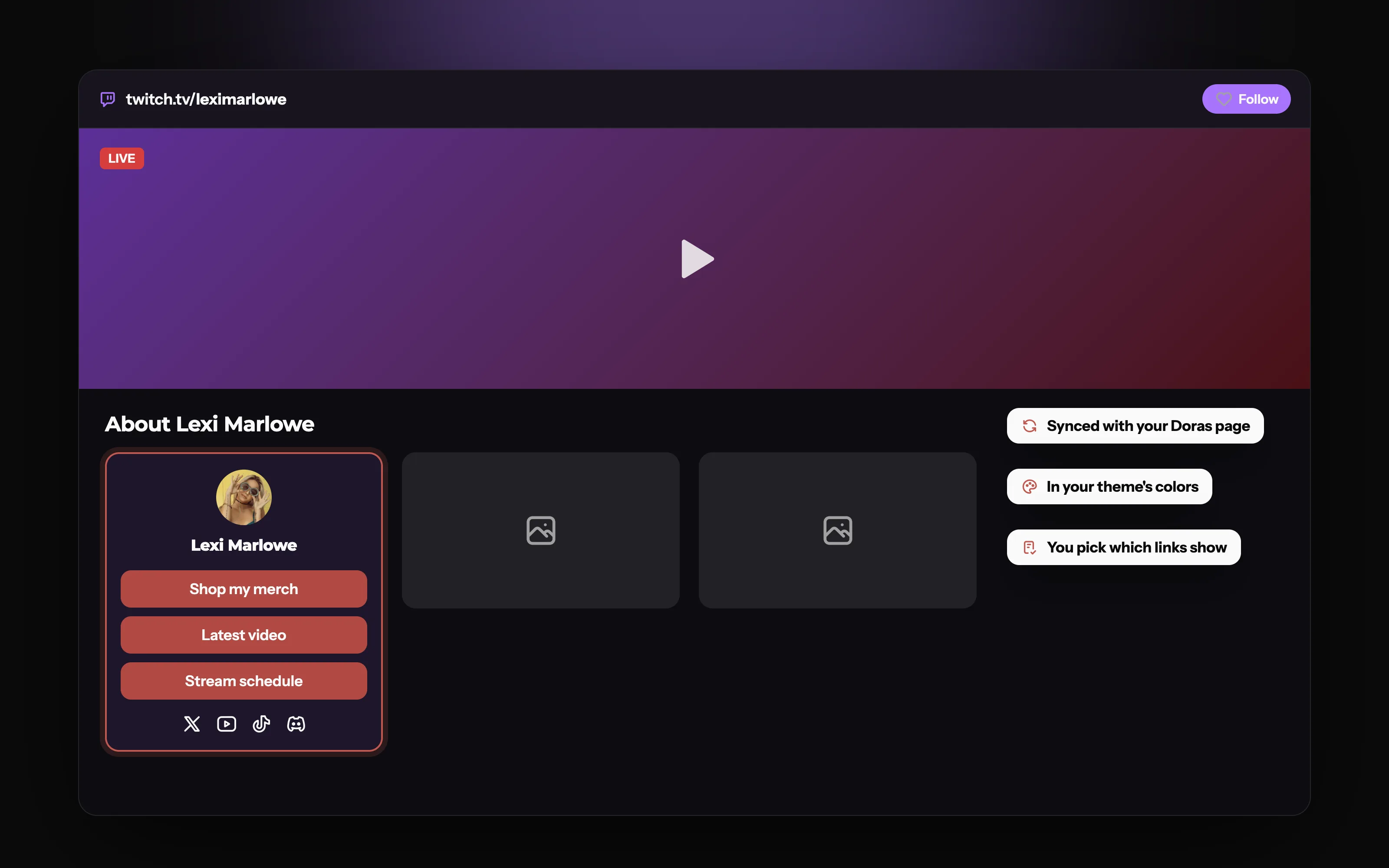
Your links, under every stream
Add the Doras extension to your Twitch channel and your links show up below your stream, always in sync with your page.
What are Twitch panels?
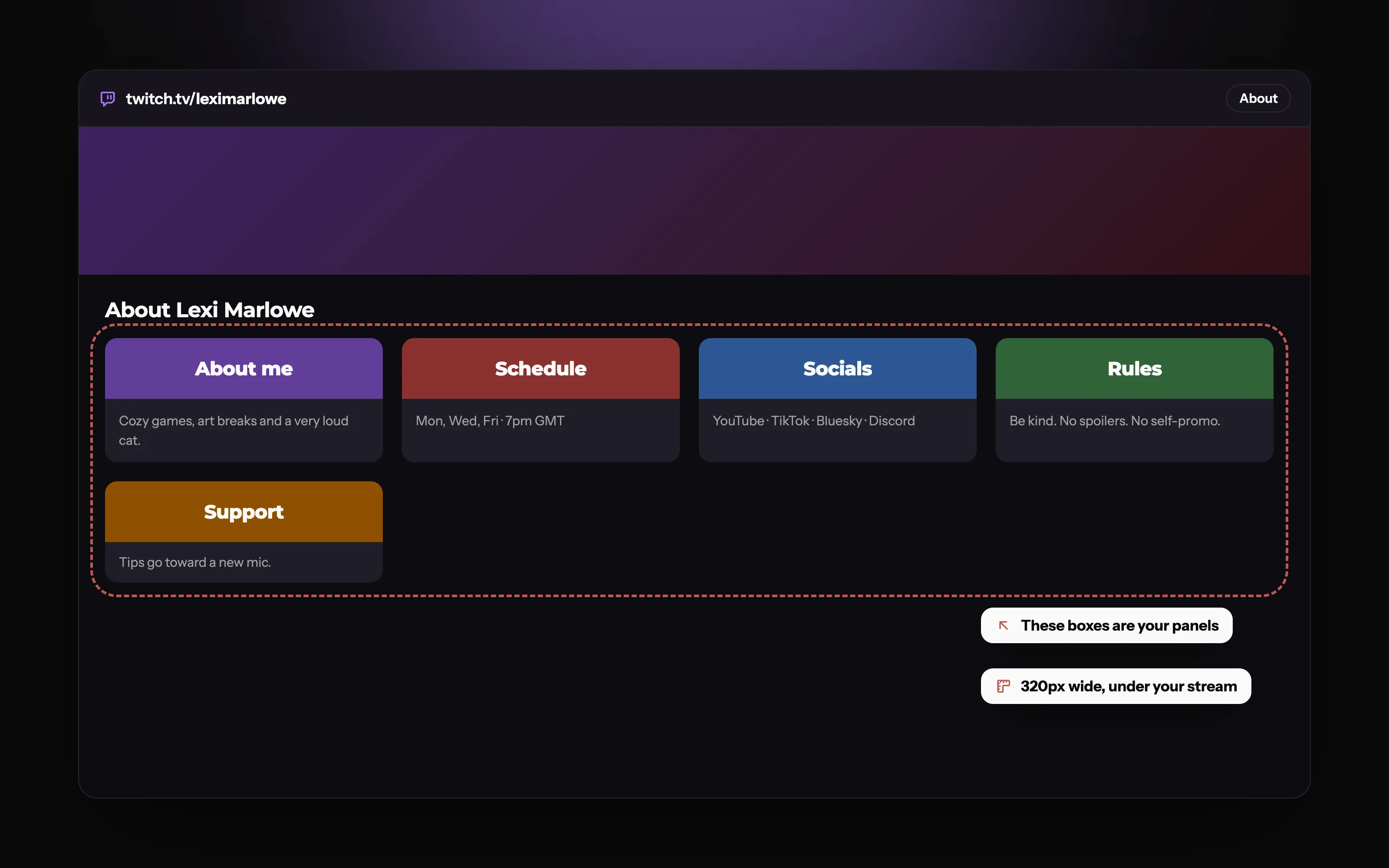
Panels are the boxes in the About section of your Twitch channel, below your stream. Each one can hold an image, a title, a short description and a link. They're where viewers go to learn who you are, when you stream, where else to find you and how to support you.
What should you put in your Twitch panels?
About me: who you are and what your stream is about, in a few lines.
Schedule: the days and times you usually go live, and your time zone.
Socials: links to your YouTube, TikTok, X, Discord and anywhere else you post.
Rules: your chat rules, so mods can point to them.
Sponsors and partners: links and codes for the brands you work with.
Support: subscriptions, merch, tips or a wishlist.
Setup: your PC, camera and mic. Viewers ask, and this saves typing it in chat.
The section under your stream
About, Schedule, Socials, Rules and Support: each box in a channel's About section is a panel, and viewers skim them between watching the stream.
Image panels vs extension panels: what's the difference?
Image panels are a picture plus text and a link, and look however you design them. Extension panels are small apps from the Twitch extensions directory that run inside a panel and update without you touching it. Twitch limits how many panel extensions can be active at once, so pick the ones that earn their space.
| Feature | Extension panel | Image panel |
|---|---|---|
| Updates without re-uploading | ||
| Shows live information, like a schedule or a list of links | ||
| Designed however you like | Partial | |
| Counts toward Twitch's panel extension limit | ||
| Best for | Links, schedules and anything that changes | Headers, rules and an About section |
What size should Twitch panels be?
Panel images are shown 320 pixels wide. Design at that width (or exactly double it for sharper images) and keep the height modest. Tall images push your other panels out of sight.
How do you make better Twitch panels?
Most important first. Put socials and schedule near the top; most viewers only skim the first few.
Keep a consistent style. Matching colors and fonts make the section look intentional.
Keep text short. Panels are read in seconds, between watching the stream.
Common mistakes
Dead links to accounts you've deleted or renamed.
An out-of-date schedule, which is worse than no schedule.
Social links that don't match your other link in bio, because you only updated one.
Your link in bio, as a Twitch panel
Most streamers make panels as images and update them by hand, separately from their link in bio. The Doras extension turns one panel into your link list, read from your Doras page and styled in its theme, so there's only one place to keep up to date.
Your theme, on Twitch
Your links and social icons in your page's colors and background. Change a link on Doras and the panel changes too.
How do you add panels on Twitch?
Open your channel page while logged in, and go to your About section.
Turn on panel editing with the "Edit Panels" toggle.
Add a panel with the plus button. Choose a text or image panel, or an extension panel.
For an image panel, upload the image, add a title, description and link, then submit.
For an extension panel, install the extension from the extensions section of your Creator Dashboard first, activate it as a panel, then add it here.
Drag panels into the order you want, then turn editing off.
Setting up the Doras panel
Install the Doras extension on your Twitch channel as a panel.
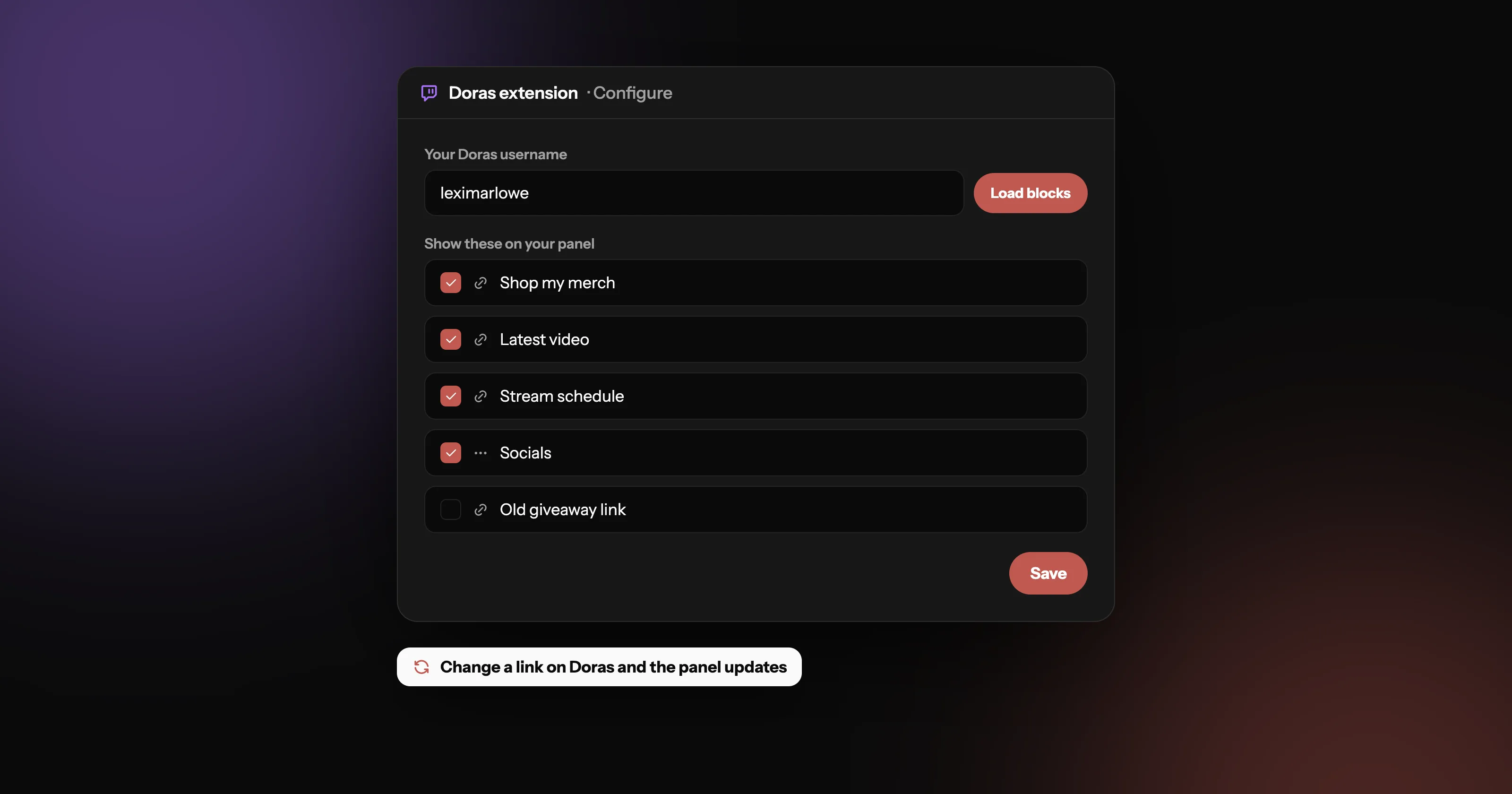
Enter your Doras username in the extension settings and load your blocks.
Tick the links to show and save. Change a link on Doras later and the panel updates.
Set up in three steps
Enter your Doras username, tick the links and social icons you want, and save. After that, link changes on Doras show up on Twitch by themselves.
Why it beats image panels
Frequently asked questions
More from Doras
Put your links under your stream
Free, synced with your page, styled in your theme.
Get Started